Layers
The Map interface can add extra context to the map with Layers. Layers are accessed from the Layers button  .
.
Street Layers
All street layers are selectable and give information on the clicked Road or Roundel. This includes Special Designations, such as Considerations and Hazards, and Lane Rentals.
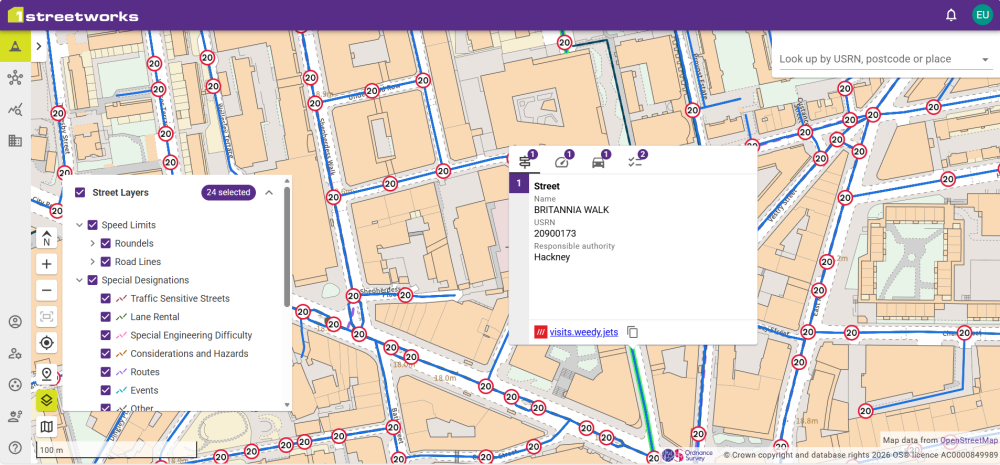
If multiple layers overlap, such as speed limits and streets, there are individual tabs for each type. The number on the icons show how many of that feature exists, which can all be viewed from that feature's tab.
Point of Interest Layers
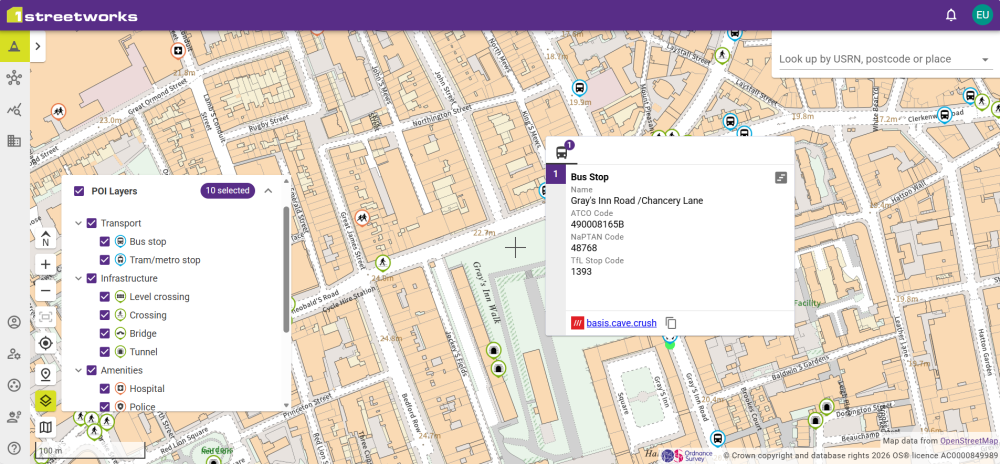
When points of interest are toggled on from the POI Layers dropdown, they can be clicked to provide extra information including the What3Words address and the name of the location if there is one e.g. Cambridge Fire Station.
Transport Timetables
If there is available data for transport points of interest, it will show on its Timetable. Click the Show timetable button  to see the data. Click the mouse on a purple cell to see all the data for that 30 minute timeslot.
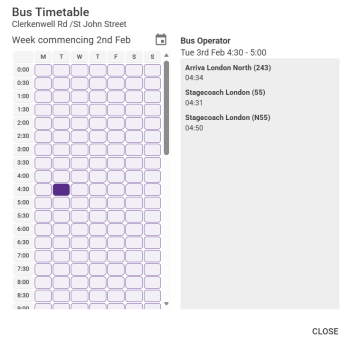
Note: This data is provided by external sources and should be used as a guide only. 1Streetworks and 1Spatial are not responsible for incorrect data.
Boundary Layers
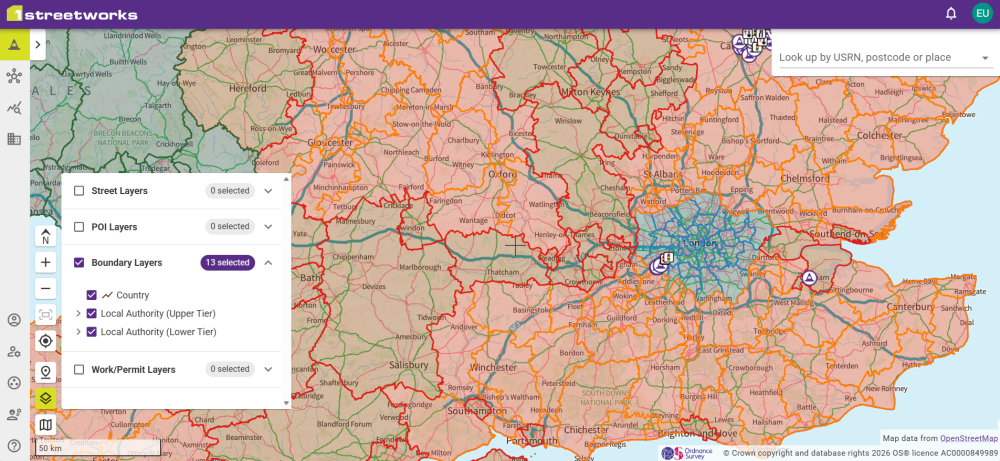
Boundaries for Counties and Local Authorities can be highlighted as layers on the Map.
Work/Permit Layers
Selecting a date range, Promoter, Traffic Management type, and/or permit types, shows all permits that meet the criteria on the map.
Promoters show both their SWA Code and whether they are for England and Wales, or Scotland. Promoter names and codes are provided by Geoplace for Promoters operating in England and Wales, and by Scottish Road Works Register for Promoters operating in Scotland.
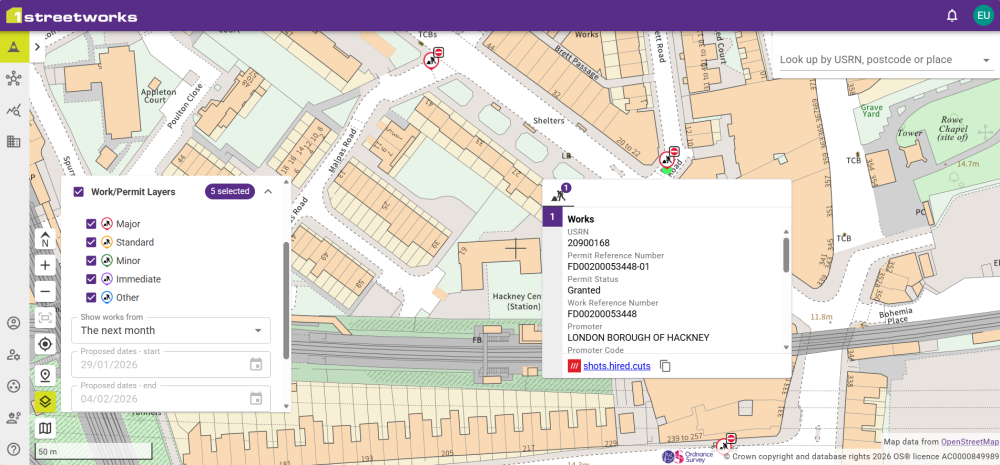
These can be selected to show the Works/Permit data such as the USRN, reference numbers, and proposed date range, along with a copyable What3Words address.
Restriction Layers
Restrictions can be filtered by date ranges and status.
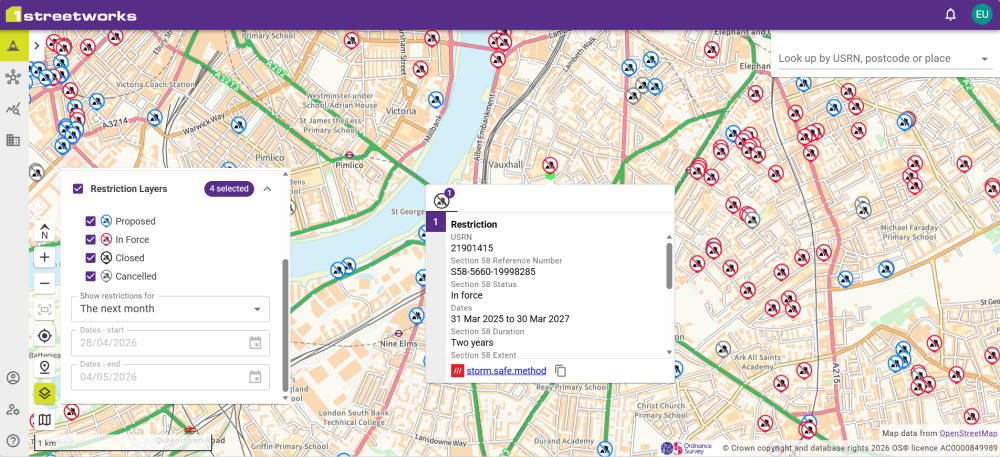
Selecting a restriction on the map displays detailed information including the duration and extent.
 minute read