Road Features
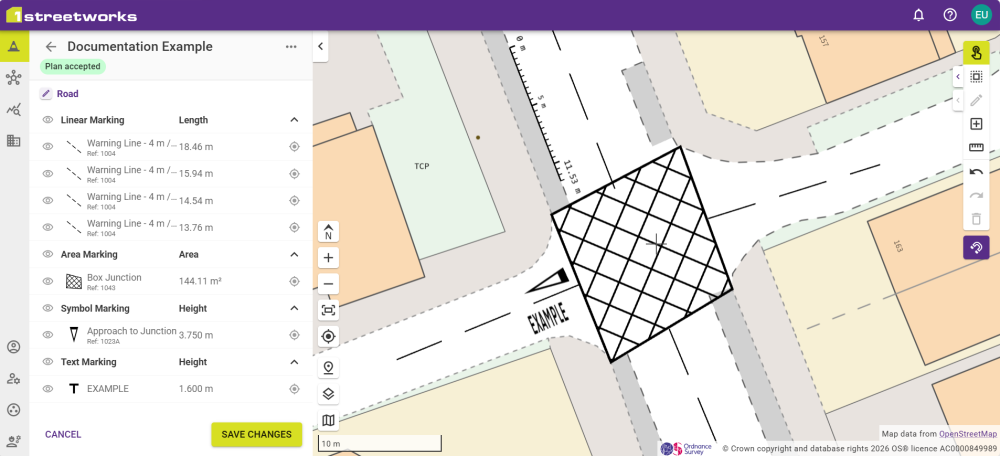
The Road section of the Plan Design tab allows road features and additional markings to be added directly onto the map in the plan. Adding road features is done in the same way as with editing or adding features. The Add Feature button  gives access to the markings instead of works area features.
Road Markings
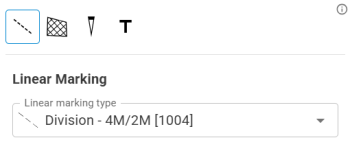
Includes line markings such as carriageway divisions, stops, and zig-zags. Each can be edited after placement to align with road curvature.
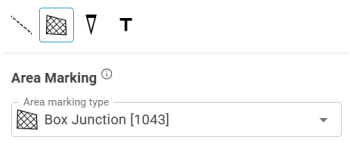
Creates an area for the marking to cover.
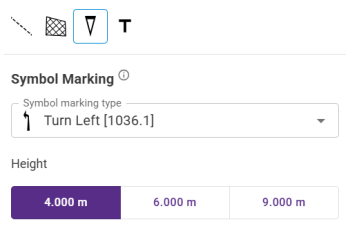
Places the marking on the map at the specified bearing.
Places text in the size and bearing selected.
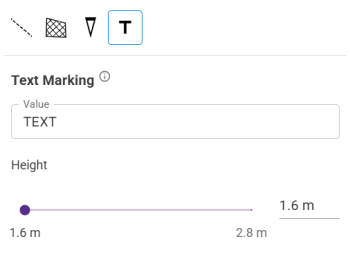
Note: Uppercase letters, digits, and ()/& only.
After selecting a type, click on the map to place as necessary. These follow the same types of placement commands as similar features, and can be edited after placement.
 minute read