Navigating the Map
Pan or zoom the map using a mouse, keyboard, or touch screen device.
|
Navigation Type |
Touch Screen |
Mouse |
Keyboard |
|---|---|---|---|
|
Pan |
Touch and drag |
Click and drag |
Arrow keys |
|
Zoom In/Out |
Pinch gesture Zoom buttons |
Mouse scroll wheel Zoom buttons |
Press +/- |
Status Bar
As you zoom and pan around the map, the Status Bar will display your current co-ordinates and the scale for your current map view.

The  and
and  arrows can be used to navigate through your map view history.
The Zoom to window icon  can be used to draw a window and zoom to the extents of that window.
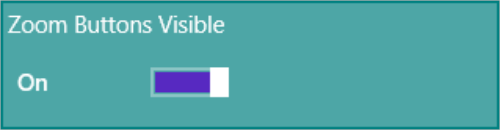
Note: For devices without multi-touch screen, ensure the zoom buttons have been enabled.
Select the drop-down next to 1: to open Scale Factor options configured in your system: 150, 200, 1000, 10k, 25k, and 50k. Choosing an option sets the map viewer extent to match the scale.
Navigate to specific coordinates by clicking  to open the Centre Map interface.
Enter coordinates to center the map and the display scale. Input coordinates as individual X and Y values or together in X,Y format. Click OK to center the map on this location.
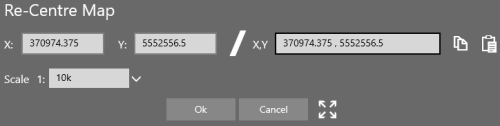
Click  to copy the currently entered X and Y co-ordinates to the clipboard.
Click  to paste the X and Y co-ordinates currently saved to the clipboard.
Click  to zoom to the extent of the current job or, if no job is active, the maximum extent of your data.
 Enable Zoom Buttons