Templates
The schema, style, and topology can be saved as a template, then used to create a new project.
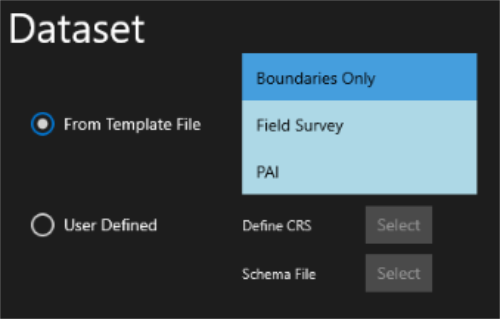
Note: Any data in the project is also saved to the template, so ensure that you create templates from projects that contain no features.
A template must be in place when opening jobs in the Worklist to ensure they are all using the same settings (see 1Spatial Management Suite Worklist).
Note: You can view the Templates being used on a Project on the Project Properties pages. See Managing Projects for more details.
Save a Project as a Template
-
From the Projects page, select the project you want to save as a Template
-
Open the the Lower App Bar.
-
Click Save as Template.
-
Enter a name for the template and browse to the folder in which you want to save it.
-
Click Save.
Templates Manager
Templates can be imported or deleted using Template Manager in Projects > Lower App Bar > Manage Templates.
Adding a Template:
-
Go to Projects > Lower App Bar > Manage Templates
-
Click Load Files
-
Select the Template(s) to load and click Open
Deleting a Template
-
Go to Projects > Lower App Bar > Manage Templates
-
Click the tick box to select a Template in the list
-
Click Delete Selected and confirm the deletion.


