
Example: Checking for invalid Geometries
In this example, you create a rule that checks objects to ensure that a road contains valid geometries.
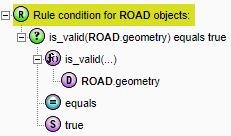
A rule to check valid geometries
- On the Rules page, click the Rule Condition tab. Select the folder in which you want to create the new rule and ensure that Auto-Assist is selected.
- Click New and Rule. Click the Rule Condition tab.
- Set up the ROAD class on the root node.
- Click and select Condition then Comparison.
- Select the first <<value>> and select Built-in Function from the Type list.
- Select Geometric is_valid from the Function list.
- Select the <<value>> below this function, and choose Dynamic Value from the Type list.
- Select ROAD as the class, and geometry as the Attribute.
- Select <<Relationship>> and choose Scalar Relationship from the Type list.
- Select Equal from Type.
- Select <<value>> at the end of the list and choose Static Value from the Type list.
- Select Boolean from Datatype.
- Select True from Value.
- Click Save.


