Action Maps
Action Maps pair Rules with Actions. 1Integrate runs Rules on each feature and, if a feature does not conform, the system runs the paired Actions on that feature.
Why Use Action Maps?
Why create Action Maps instead of using Rule logic directly in an Action?
Action Maps let you separate Rule logic from Action logic, so you can:
-
Run standalone validation reports - Use independent validation rules to measure conformance.
-
Avoid duplication - You do not need to maintain the same checking logic in both the Rule and the Action.
-
Avoid reverse checking logic - Rules specify what is valid (for example, a building must have polygon geometry). If you include this logic in an Action, you must specify the inverse (for example, if the building does not have polygon geometry).
Pairing Rules and Actions
To select multiple Rules/Actions, use CTRL + click on the Rules and Actions that you want to pair.
Use Action Maps for enhanced reporting on non-conformance, often paired with these Built-in Functions:
-
rule_name
-
rule_hotspot_geometry
-
rule_hotspot_attributes
An Action Map can contain multiple Rule and Action pairs. For example, an Action Map may include:
-
Single Rule to Single Action pair - If a feature fails the Rule, the system executes the Action.
-
Single Rule to Folder of Actions pair - If a feature fails the Rule, the system executes all Actions in the folder one by one.
-
Folder of Rules to Single Action pair - If a feature fails any Rule in a folder, the system executes the mapped Action.
-
Folder of Rules to Folder of Actions pair - If a feature fails any Rule in a folder, the system executes all Actions in the folder one by one.
Creating and Managing Action Maps
You need 1int-actionmaps-read and 1int-actionmaps-write permissions to use Action Maps.
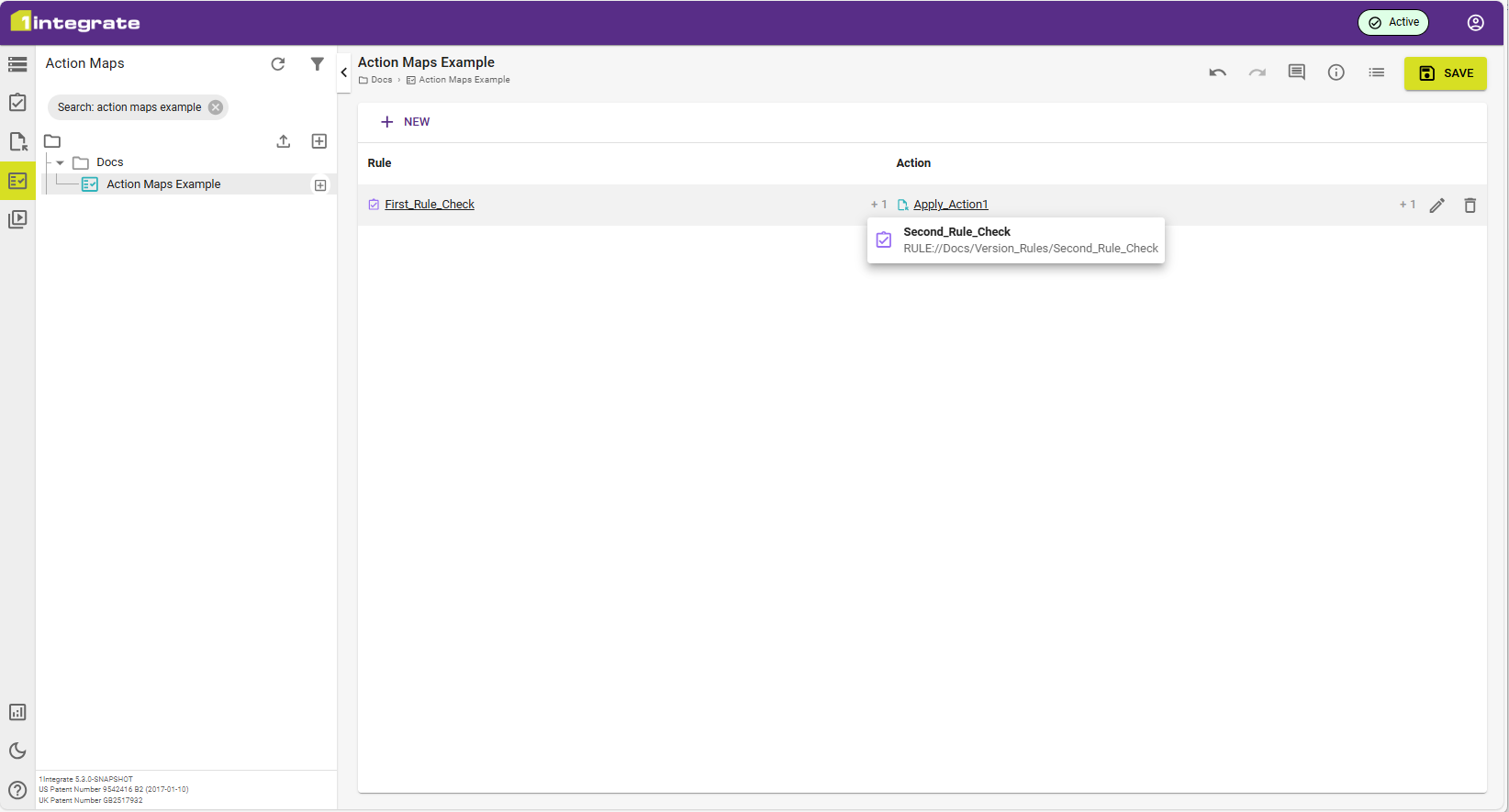
-
From the Sidebar > Action Maps, create an Action Map with the Add button
 , or use the context menu in the Navigation pane.
 -
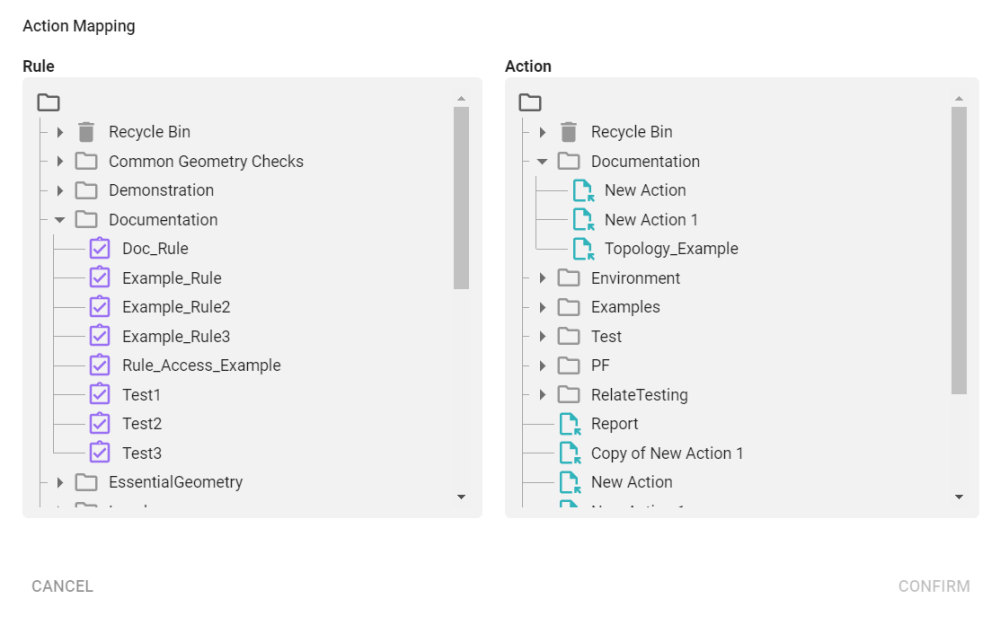
This creates an Action Map and opens the Action Mapping popout.
-
Select a Rule under the Rule heading, then select an Action under the Action heading to pair them. You can use CTRL + click to select multiple Rules/Actions. The system executes Rules and Actions in the order that you select them.
-
Click Confirm.
-
(Optional) Repeat steps 2–4 to add more Rule/Action pairs.
- Click Save.
Always Report Rule Results
When you add an Action Map to a Session, you can use the Always Report Rule Results option.
With this option enabled, the resulting reports will always report rule results and include all features that failed the Rule. If the toggle is on, reports show the percentage of features that failed the Rule and progressed to the Action.
If the toggle is off, reports show the percentage of features that completed the Action Map.
Non-conformance reports from Rules are available in the same way that they are for Check Rules Tasks.
Moving, Copying and Deleting Action Maps
For details about moving, copying, and deleting, see Items and Folders.
You can delete Action Maps only when no other objects, including shortcuts, use them.
To check if another object uses an Action Map, click the "Used by" button  .
.


