Partitioning
Partitioning allows processing to occur on separate Engines, each running a unique Session in parallel, providing more efficient performance.
You can also have a single partition where processing takes place in a single Session on one Engine.
When selecting data using Multiple Predefined Regions, a partition is created for each object in a specified class that has the polygon geometry. For all other data selection options, the data in the polygon object or region is split equally for the Engines.
Creating Partitions
Partition polygons must already exist in the Data Store before being used in a Session in 1Integrate.
Partitions must exist as geometric features in a single class within your Data Store. Suitable Partition polygons may already exist or they can be created in a separate 1Integrate Session and committed to a Data Store, or created using other tools.
Forming Partitions
To form partitions, some recommended techniques are:
-
Using political boundaries such as local authority or municipality areas
-
Aggregating smaller skin-of-the-earth features into larger polygons
-
Using the implicit gaps between linear features, such as road lines
-
1Integrate includes Built-in Operations to help create partitions from existing data. These help to aggregate existing polygons into partitions, and to add a grid of lines around the outside of the partitions in order to handle data outside of the partition data. When using lines such as roads to form partitions then planar topology must first be built in order to use the topology faces (but not including the universe face). In order to use the Built-in Operations, the data must be loaded into a Session and Topology built on the data, before the operations can be used.
Your Session can now be constructed as normal, with any tasks being applied to a sub-Session for each partition.
Using Partitions in Sessions
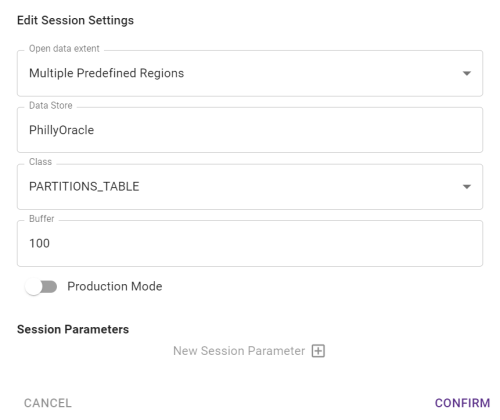
Once partitions have been set up in your Data Store, you can run a Session using Multiple Predefined Regions.
In your Session, make sure the following options are selected:
|
Option |
Description |
|---|---|
|
Multiple Predefined Regions |
Select this method of opening data (partitions are pre-defined regions of data) |
|
Data Store |
Select your Data Store |
|
Class |
Select the table in your Data Store in which your partitions are defined |
|
Buffer |
Enter a value (in dataset units) to use as a buffer (see Scope and Buffer Regions) |
Best Practice Tips
For best performance it is a good idea to have partition polygons that:
-
Are compact in shape (more like squares than long thin shapes)
-
Have similar number of features inside them (dense urban areas should have smaller partitions than sparse rural areas)
-
Have no gaps between them
-
Cover all the data that you want to process
-
Avoid having many features crossing their boundaries and tend to follow the existing data: features that intersect multiple partitions will be processed in each partition.
-
Ensure the number of partitions that are processed in parallel by the engines are neither too large (so that repeating a partition takes too long), or too small (so that there are huge numbers of features that are in multiple partitions).
Sub-sessions
Once your Session is running it will create a folder containing several "sub-Sessions", one for each partition.
Each sub-Session can be viewed and analysed as any normal Session.


