Opening Plans
When you select a plan summary from the Plans panel or select a Cone sign on the map, the corresponding plan opens, zooming the map to the defined geographical extents of that traffic management plan, and listing the details of the plan in the Plan panel.
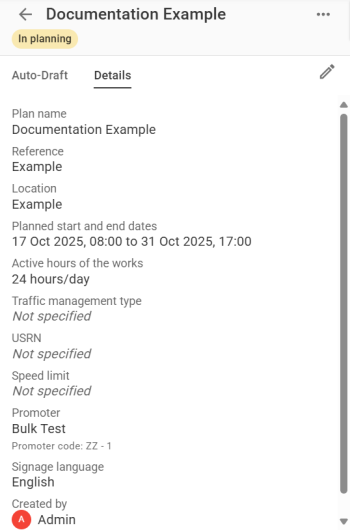
The above example is for a plan that has been created but not yet been submitted to the Auto-draft process.
At the very top is the name of the plan that the user entered when the plan was first created.
Immediately below the plan name is the current Plan status.
The details on a plan vary depending on what stage of the Auto-draft process it is in. A plan which has been drafted or accepted will list more details and look closer to the example below. A Manual Plan will require some information to be populated manually.
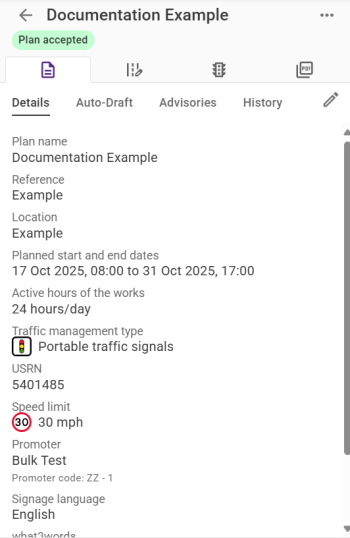
The full set of details for a completed plan are:
|
Detail |
Description |
|---|---|
|
Plan name |
The name given to the plan. |
|
Reference |
This is a reference identifier for the plan. This will vary by organisation using 1Streetworks but is typically a contract reference or a drawing number. |
|
Location |
The descriptive location that has been written by a user. |
|
Planned start and end dates |
The start and end dates and times for the works. These are usually a key input to the permit that will ultimately be applied for from the local highways authority. |
|
Active hours of the works |
These are the start and end times of each working day between which works are taking place. These are usually a key input to the permit that will ultimately be applied for from the local highways authority. |
|
Traffic Management Type |
An automatically assigned type that can be filtered in the search. This can be changed or removed while editing Plan Features. |
|
USRN |
The Auto-draft process adds the Unique Street Reference Number (the 8-digit unique identifier for every street across the United Kingdom) by querying the Ordnance Survey data for the segment of road closest to the centre of the works area (or the first works area created for this plan if there are multiple). |
|
Speed Limit |
The Auto-draft process adds a speed limit by querying the Ordnance Survey data for the segment of road closest to the centre of the works area (or the first works area created for this plan if there are multiple). |
|
Promoter |
The assigned SWA Organisation. |
|
Signage Language |
Set the language(s) for any signage added to the Plan. |
|
what3words |
The what3words address is added automatically by the application for the centre point of the first (or only) works area of the plan. This is also an active link that opens a new browser tab/window for that location on what3words.com. |
|
Created by |
Shows which user created the plan and the date and time of the plan creation. |
Plan status
The plan status is displayed at the top of each plan:
|
Status |
Description |
|---|---|
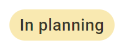
|
A plan has been created but has not yet begun the Auto-draft process. |
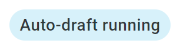
|
A plan is currently in the process of being Auto-drafted. |
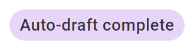
|
Auto-draft is complete but not yet accepted by a user. |
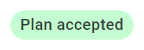
|
Auto-draft is complete and has also been accepted by a user. |
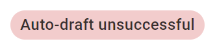
|
The Auto-draft process has been unsuccessful. Note: Unsuccessful Auto-drafts can be edited manually in 1Streetworks. |
Clicking the Options menu  gives two options: Delete plan will remove the Plan from 1Streetworks, Duplicate for new auto-draft will create an exact duplicate of the Plan.
Duplicating Plans
Plans are duplicated through the Duplicate for new auto-draft option on any Plan that has at least been through the Auto-draft process. Plan details are auto-filled from the original Plan but can be updated before clicking Duplicate to confirm the duplication process.
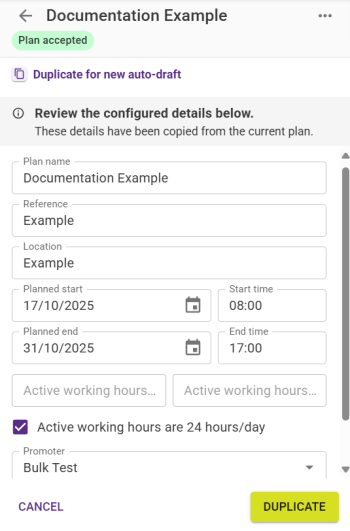
If an Auto-draft has been accepted then any information used in the Creating Plans process is replicated but a new Auto-draft must be generated. Any additional features or customisation is not recreated, so Diversions, Signals, and anything else added by Plan Features must be created separately.
 minute read