Navigating 1Streetworks
The Plans tab is the default space; containing the map, plan summaries, and plan search functionality.
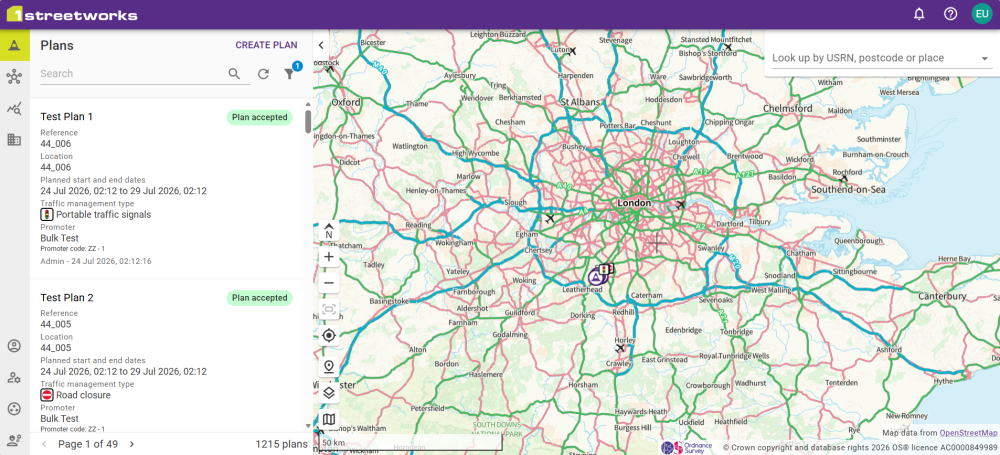
There are three sections users have access to in 1Streetworks: Plans, SWA Organisations, and Manage Account. These can be accessed from the following options from the side bar.
This is the default start page and contains the map and the Plan Browser. The Plan Browser is a list of all your organisation's existing plans, including in-progress plans. Plan details can be viewed here, and new plans can be created.
If your organisation is part of a consortium, this tab will be available. Plans for all members of the consortium are available to view in a read only mode.
Tenant/Platform Administrators are able to view the dashboard for your organisation. This shows a breakdown of plan and user statistics.
1Streetworksrequires each plan to identify the works promoter or undertaker that a plan is for. The Manage SWA Organisations page shows all organisations that have been added to the list.
Works promoters likely only have themselves listed. Works undertakers may have a list with all promoters that they work with.
You can manage your user profile and account security here.
Latest News and System Status
1Streetworks is an online product that is hosted and updated in the cloud. This means that services can and will upgrade and occasionally be unavailable due to an incident or because of scheduled maintenance.
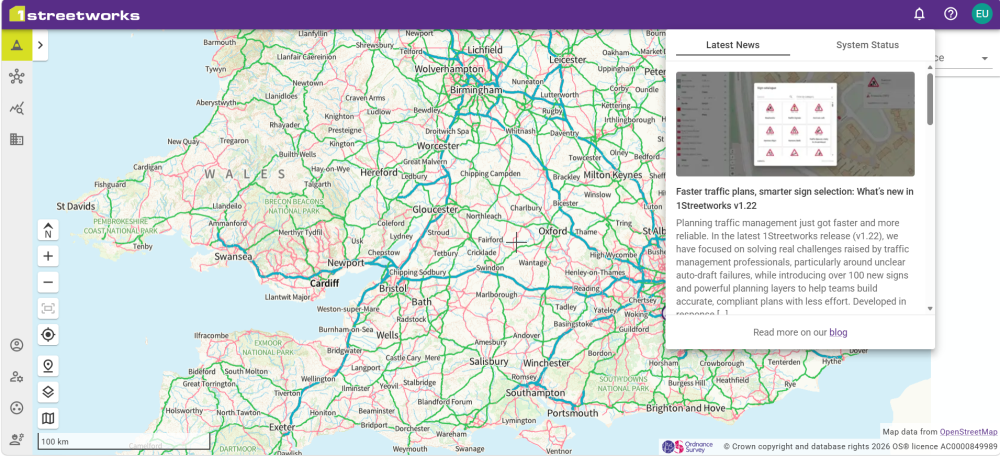
News can be found under the Latest News tab by clicking the Status button  . News includes version updates and events, detailed on our blog.
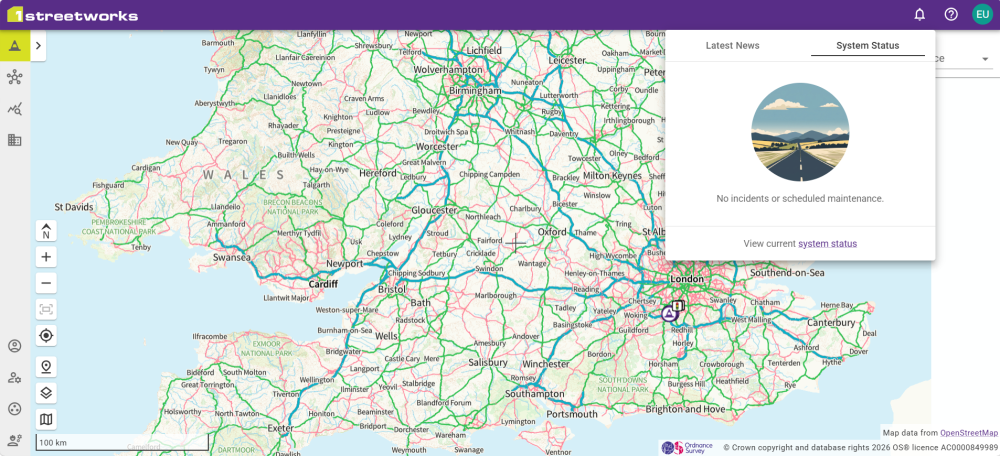
System Status can be checked in the System Status panel by clicking the Status button  and selecting the System Status tab. This lists any interruptions to the 1Streetworks Service. If there is a live incident or current maintenance, there will be a yellow dot on the Status button.
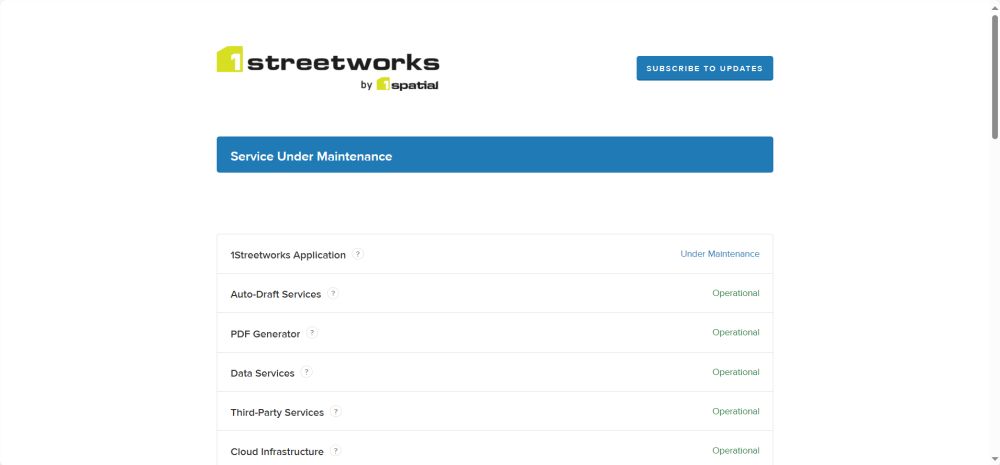
A detailed System Status page can be reached via the link in the System Status panel, as well as via the System Status link in the documentation.
Click Subscribe to Updates to receive updates to the System Status via email, Slack, Teams, Atom Feed, or RSS feed.
Documentation and Build information
This documentation site can be reached via the Documentation button  . Hovering the mouse over the button will show version and build information.
 minute read