

Run FME Workspaces Overnight
Using FME Flow to Run Workspaces Overnight When Triggered in the Day
Article written by Martyn Lufkin, Principal FME Consultant at 1Spatial
In many FME Flow environments, the challenge is not simply getting a workspace to run — it is getting it to run at the most convenient time. Long-running synchronisation jobs can place unnecessary demand on FME Flow engines during the working day, particularly when the same instance is also supporting user-driven requests. At the same time, operators often need a simple way to request follow-on processing as soon as upstream data loading and QA are complete.
This article explores that balance: how to let an operator trigger a workspace during the day, while ensuring the actual processing occurs within an overnight window. Using a recent client scenario as the starting point, we will look at two practical approaches: controlling execution with FME Flow Active Periods and creating one-off schedules through the FME Flow API.

While working with a client recently, I was asked how to let an operator trigger an FME Flow workspace during the day but delay its execution until outside office hours.
“Once a data-loading workspace has run successfully and the data has been QA’d, an operator needs to run a second workspace to synchronise the data to another environment. Our FME Flow instance is busy during the day with user requests, and the synchronisation may take several hours. We therefore want the operator to be able to trigger the workspace during the day, while ensuring the workspace waits until after hours before it starts. A fixed nightly schedule is not suitable, because we do not know whether the data-loading workspace will have finished in time.”
There are two practical approaches to this challenge:
- use FME Flow Active Periods to control when queued jobs can run; or
- create a one-off schedule through the FME Flow API.
Option 1: Use FME Flow Active Periods
Active Periods allow you to specify when a queue can submit jobs to a defined engine. They can be configured as a one-off window, or as a daily or weekly recurring schedule.
The FME Flow documentation explains how to configure Active Periods in more detail
In this scenario, one possible solution is to create a repository for workspaces that should only run overnight, for example, Overnight Running Only. The relevant workspaces can then be placed in that repository and routed to a dedicated overnight queue.
When configuring this in Engine Management, it helps to work through the tabs from left to right.
Engines
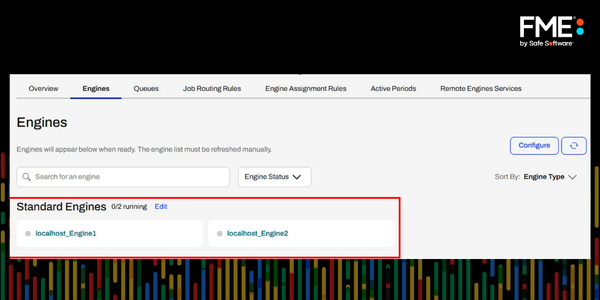
Check that an engine is available and decide whether the Active Period should be limited to a specific engine.
Figure 1: Checking Engine Capacity
Queues
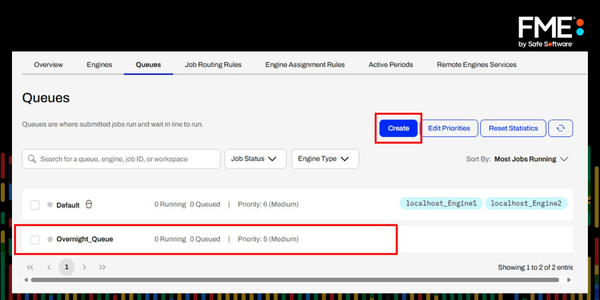
Create a dedicated queue, for example, Overnight_Queue.
Figure 2: Creating an Overnight Queue
It is worth noting that although you can assign the Default queue to an Active Period, it will not behave as expected. The Default queue is reserved and cannot be used for Active Periods.
Job Routing Rules
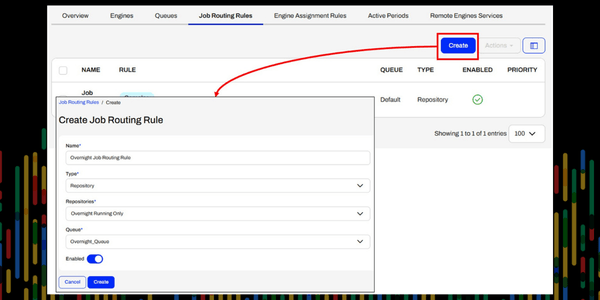
Next, route all workspaces in the overnight repository to the queue you created.
Figure 3: Job Routing Rules
Engine Assignment Rules
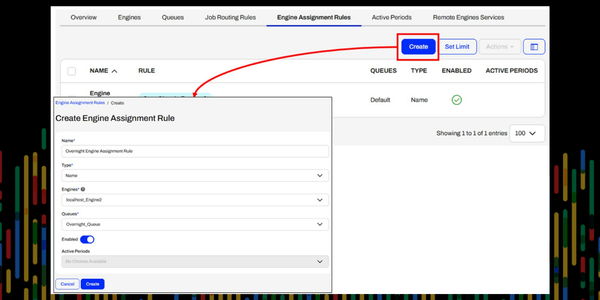
Once the workspaces are routed to the correct queue, assign that queue to the engine or engines that should process it.
Figure 4: Engine Assignment Rules
If you have already created an Active Period, you can select it at the bottom of the Create Engine Assignment Rule window.
Active Periods
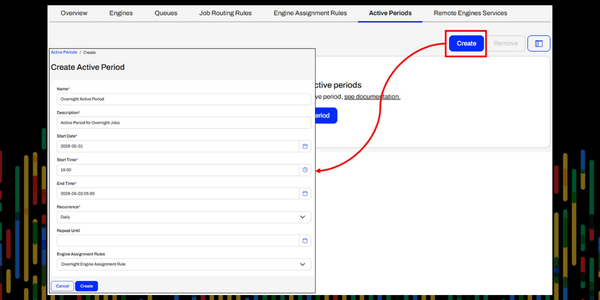
Finally, assign the Engine Assignment Rule to the time period during which the queue should be active. Make sure both the start and end times include dates, even for a daily schedule. This is especially important where the Active Period crosses midnight into the following day.
Figure 5: Creating Active Period
Managing jobs that run beyond the Active Period
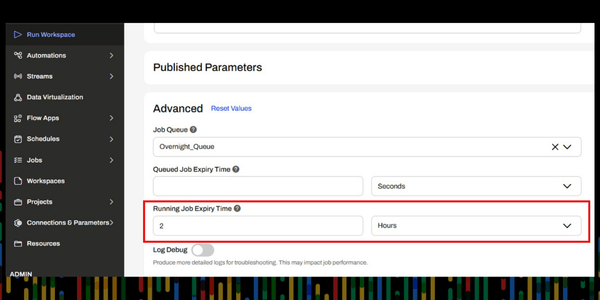
If you can estimate how long the workspace should take to run, you can reduce this risk by setting job expiry times. Under the Advanced settings in Run Workspace, set a Running Job Expiry Time. You may also want to set the Queued Job Expiry Time to limit how long a job can remain in the queue.
Figure 6: Using Job Expiry Times
Used consistently across the workspaces in the overnight queue, these settings can help reduce unexpected congestion the following morning.
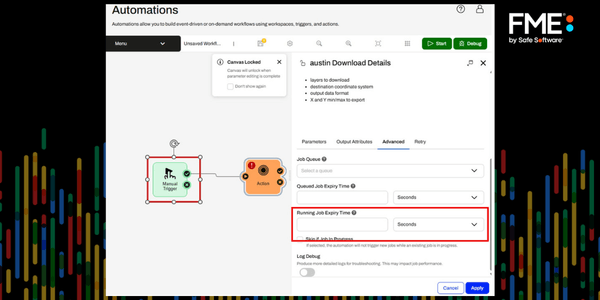
However, these Advanced settings are not available when running a workspace from a Workspace App. In that case, create an Automation with a Manual Trigger instead.
Figure 7: Using Job Expiry Times in Automations
This provides access to the workspace Advanced settings, and you can then create an Automation App to allow the operator to run it.
Option 2: Use a One-off Schedule
A fixed recurring schedule is not suitable here, because the synchronisation workspace should only run when the preceding data-loading workspace has completed. If the data-loading process runs late into the evening, the synchronisation may need to wait until the next available overnight window. Some form of manual trigger is therefore still required.
A one-off schedule provides an alternative. Using the FME Flow API, you can create a schedule that runs once at the required time. After the workspace has been triggered, you can use the API again to delete the schedule.
This approach avoids the need to configure Active Periods and gives the operator more flexibility. It could also be automated in FME using a simple sequence of API calls:
- retrieve previous schedules with the chosen tag;
- delete any old schedules; and
- create a new one-off schedule to run overnight.
Summary
A triggered workspace does not always need to run immediately. FME Flow offers several ways to control when processing takes place, including engine management, queue management, Active Periods, and API-driven scheduling. Used well, these options help keep daytime requests responsive, make better use of available engines, and allow more operational jobs to be automated effectively.
Talk to our FME Experts
If you have any further questions on upgrading your FME infrastructure to take advantage of these tools, please be in touch with the FME team here at 1Spatial!
Contact Us